-
vSaaS Global > Article > How to Integrate Smartsheet with Claude AI: Step-by-Step Setup Guide
How to Integrate Smartsheet with Claude AI: Step-by-Step Setup Guide
What Is the Smartsheet + Claude Integration?
The Smartsheet connector for Claude allows Claude AI to securely access data stored in your Smartsheet sheets and workspaces.
Once connected, Claude can analyze sheet data and provide useful insights through conversational prompts.
Teams can quickly understand:
Project status
Task progress
Overdue items
Project risks
Workload distribution
This significantly reduces the time spent on manual data analysis.
Key Benefits of Smartsheet + Claude Integration
1. Real-Time Project Insights
Claude can analyze Smartsheet data and provide instant summaries of project health and progress.
2. Faster Risk Identification
AI can highlight overdue tasks, potential delays, and critical risks that require attention.
3. Automated Reporting
Generate reports and summaries from your sheet data without manual effort.
4. Improved Decision Making
Project managers gain quick visibility into project status, helping teams act faster.
Smartsheet + Claude Integration: Step-by-Step Setup Guide
Project teams often rely on spreadsheets and work management tools to track progress, monitor tasks, and manage project timelines. However, manually reviewing sheets to identify risks or overdue tasks can take valuable time.
With the Smartsheet + Claude AI integration, teams can now analyze project data through AI-powered conversations. Instead of manually scanning sheets, you can ask questions and receive instant insights from your Smartsheet workspace.
In this guide, we explain how the integration works, its benefits, and the steps required to connect Smartsheet with Claude AI.
Prerequisites Before Connecting
Before setting up the integration, ensure the following requirements are met:
Access permissions for the sheets or workspace you want Claude to analyze
How to Integrate Smartsheet with Claude
Follow these steps to connect Smartsheet with Claude AI.
Step 1: Sign in to Claude
Open your Claude account and log in.
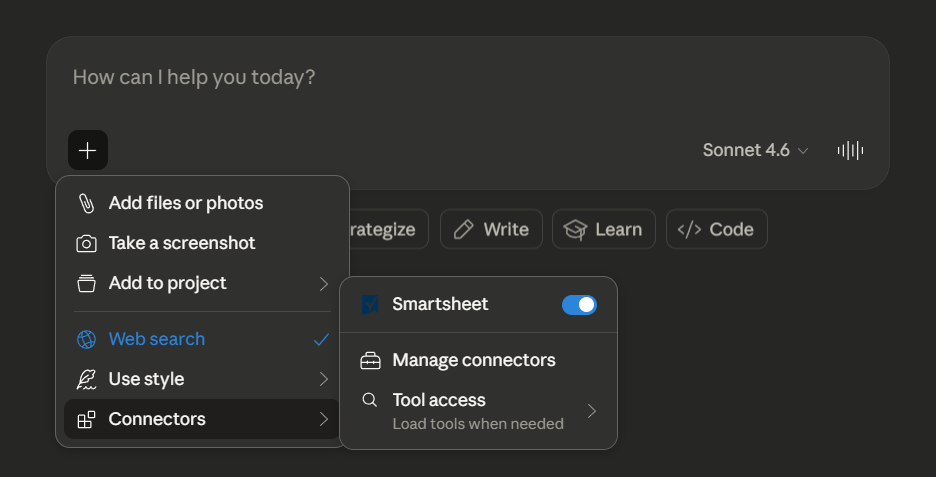
Step 2: Open the Connectors Section
Go to Settings and select Connectors.
Step 3: Find the Smartsheet Connector
(if you don’t see it, click Browse Connectors and search Smartsheet).
Step 4: Connect Smartsheet
Click Connect to start the integration process.
Step 5: Authorize the Connection
After connecting, you will see:
Configure
Server URL
This Server URL is automatically generated after the connection is established.
Step 6: Confirm the Integration
Once connected, the configuration page will show the Smartsheet MCP server details, confirming that the integration is active.
You can now start a conversation with Claude and ask questions about your Smartsheet data.
What You Can Do After Connecting
After the integration is complete, Claude can help you interact with your Smartsheet data more efficiently.
For example, you can ask Claude to:
Identify overdue tasks
Summarize project progress
Highlight potential risks
Generate project reports
Create presentation summaries from sheet data
This allows teams to transform raw data into actionable insights instantly.
Real Use Cases for Teams
Organizations can use the Smartsheet + Claude integration in multiple scenarios.
Project Management
Get instant updates on project status and task progress.
Risk Monitoring
Detect potential project delays and identify critical risks.
Executive Reporting
Generate quick summaries and insights for leadership teams.
Workflow Optimization
Automate repetitive data analysis tasks and focus on strategic work.
How vSaaS Global Helps
At vSaaS Global, we help organizations maximize the value of modern work management platforms.
Our expertise includes:
Smartsheet implementation
Workflow automation
Enterprise integrations
AI-powered project management solutions
We help teams streamline operations and unlock deeper insights from their data.
Need Help Implementing Smartsheet Automation?
If you’re looking to implement Smartsheet integrations, automation workflows, or AI-powered project insights, our experts can help.
Contact vSaaS Global to learn how we can support your digital workflow transformation.